
3.2. Home
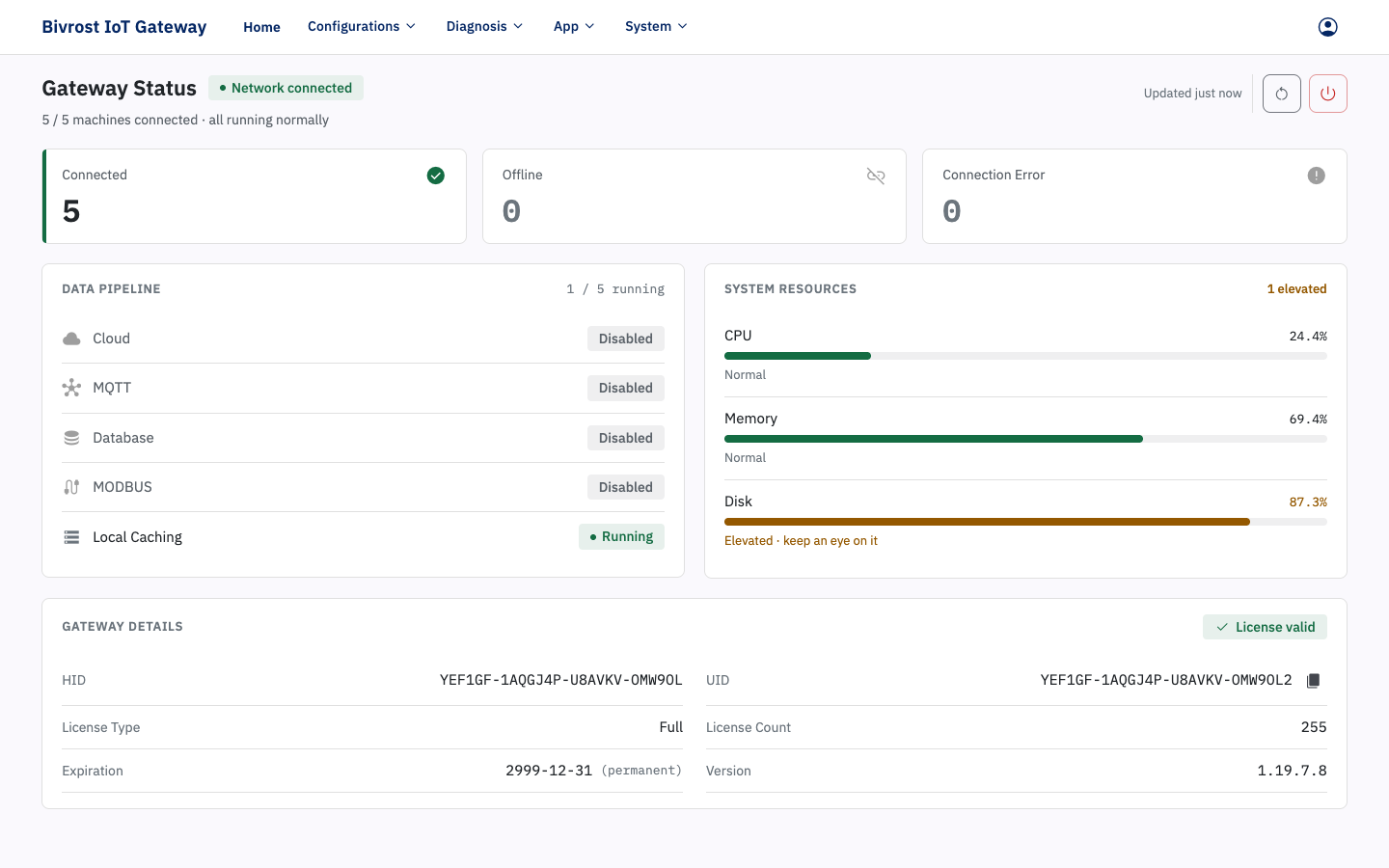
After you sign in, the gateway opens the Home page. The navigation bar at the top contains a Home link and four menus: Configurations (Machines/Group/Task/Communication), Diagnosis (API Test/Network Tools/Logger), App (DNC/Analysis/Monitor) and System (Network/Settings). The Account menu is in the top right corner. The page content is shown below the bar.
3.2.1. Function Buttons
Section titled “3.2.1. Function Buttons”The function buttons are in the top right corner of the “Gateway Status” panel on the Home page: Restart Service and Gateway Shutdown/Restart. After you change any configuration, the navigation bar also shows the prompt “Configuration changed. Restart the service for changes to take effect.” — click it to restart the service.
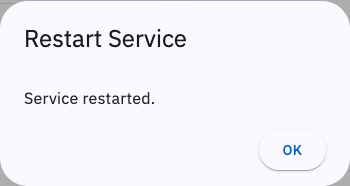
The Restart Service button restarts the gateway service. After you change configuration parameters — on the Machines, Groups, Communication or Tasks pages, for example — you must click Restart Service for the changes to take effect. Clicking Restart Service opens the restart dialog; after about 5~10 seconds it reports that the service has restarted, and you can click Confirm to close it.
The Gateway Shutdown/Restart button powers the gateway hardware down or restarts it.
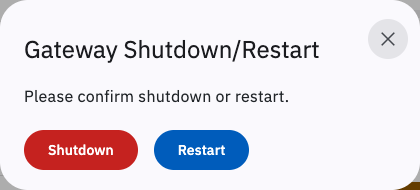
Click Shutdown to power the gateway hardware down safely. Wait until the gateway’s power LED goes out before unplugging the power cable.
Click Restart to restart the gateway hardware. The restart takes about a minute.
3.2.2. Gateway Status
Section titled “3.2.2. Gateway Status”“Gateway Status” shows the gateway’s main operating status. At the top is a summary of machine connections (the number of machines that are connected, offline or in connection error):

The “Data Pipeline” card shows the status of the Cloud, MQTT, Database, MODBUS and Local Caching services; the “System Resources” card shows CPU, Memory and Disk usage. All statuses refresh automatically every 5 seconds.
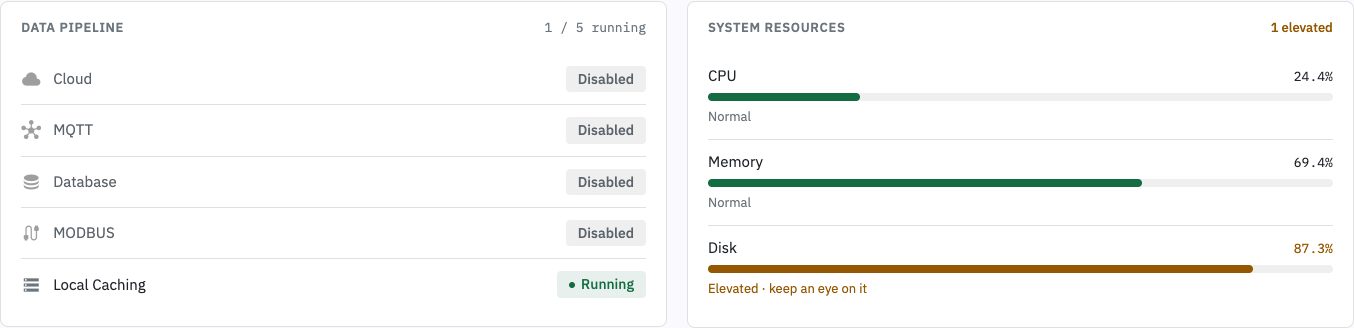
The individual entries under Gateway Status are described below:
| Name | Description | Status |
|---|---|---|
| Internet | Whether the gateway can currently reach the internet — unrelated to machine connections | Internet reachable Internet unreachable: the gateway probes several internet targets in parallel every 15s and only reports this after 3 consecutive all-failed rounds Checking internet: the first round has not produced a verdict yet Internet status unknown: the browser cannot reach the gateway right now, so the state shown may be out of date |
| Cloud | Connection between the gateway and the cloud platform | Running: the Cloud service is on (see 3.6.1. Cloud Settings), correctly configured, and connected to the server Off: the Cloud service is off Delayed: an upload did not complete in time, for example because of network latency Other statuses: the Cloud service has failed |
| MQTT | Connection between the gateway and the MQTT server | Running: the MQTT service is on (see 3.6.3. MQTT Settings), correctly configured, and connected to the server Off: the MQTT service is off Delayed: an upload did not complete in time, for example because of network latency Other statuses: the MQTT service has failed |
| Database | Connection between the gateway and the database | Running: the Database service is on (see 3.6.4. Database Settings), correctly configured, and connected to the server Off: the Database service is off Delayed: an upload did not complete in time, for example because of network latency Other statuses: the Database service has failed |
| MODBUS | Status of the gateway’s local MODBUS service | Running: the MODBUS service is on (see 3.6.2. MODBUS Settings), correctly configured, and the local server is running normally Off: the MODBUS service is off Delayed: an upload did not complete in time, for example because of network latency Other statuses: the MODBUS service has failed |
| Local Caching | Whether local caching is on or off | Running: local caching is on Off: local caching is off |
| Machine Connections - Connected | Number of machines connected successfully | 0~255 |
| Machine Connections - Offline | Number of machines offline | 0~255 |
| Machine Connections - Error | Number of machines with a connection error | 0~255 |
For Cloud, MQTT, Database and MODBUS, the other statuses include “Initiated”, “Waiting for Connection” and “Error”. “Initiated” means the gateway has initialised the service but cannot proceed any further, because of a configuration error or a break in the network. “Waiting for Connection” means no reply has been received from the target server, which may indicate a network fault or a server fault; the local cache (database) also stays in “Waiting for Connection” until it has connected to InfluxDB, and while it waits the acquired data queues up and the backlog keeps growing. “Error” means a fault occurred at some stage.
3.2.2.1. Queue Backlog and Discarding It
Section titled “3.2.2.1. Queue Backlog and Discarding It”When a service’s destination (the cloud platform, the MQTT server, the database, the Hub and so on) is temporarily unreachable, the data waiting to be sent is queued on the gateway and sent once the connection comes back. Anything beyond the in-memory capacity is buffered on disk, so the backlog survives a gateway restart and is still sent afterwards.
Once a backlog reaches 100 items or more, the service’s row in the “Data Pipeline” card shows the current backlog size. If the backlog is shrinking, the status reads “Recovering”, meaning the connection is back and the data is being sent — no action is needed.
If the target server has been down for a long time (days, say), the backlog may no longer be worth sending, and sending it still costs disk space and bandwidth. In that case click the Discard queued data button on that row: after you confirm, everything that service has waiting to be sent, in memory and on disk, is permanently discarded and cannot be recovered, so use it with care. Discarding only affects the pending queue; it does not affect data acquisition from the machines or data already uploaded.
3.2.3. Gateway Details
Section titled “3.2.3. Gateway Details”The UID under “Gateway Details” is the device’s unique identifier. You need to give it to support when you request help or upgrade your license.
- Expiration is the date on which the collection license expires.
- License Count is the number of collection licenses configured on the gateway, that is, how many machines the gateway may collect from at the same time.
- License Type is the type of collection license. Contact support to find out which features each type provides.
- License Status shows whether the current license is valid. “Invalid” means the license has not been assigned, or has expired.
- Version is the software version currently running on the gateway.

In the screenshot above, the gateway’s license type is “Full”. The available interfaces include Basic Data (Status, Count, Alarm, current program name, Current Program Block and so on), Axis Data (Position, Feed and Spindle, Load), Cycle Data, OEE Monitoring, PLC Data, tool offset read/write and DNC. The gateway can collect from up to 255 machines at the same time, and the license expires on 31 December 2999. The current license status is valid. The gateway software version in the screenshot is 1.19.4.19.